

The world has changed very quickly since I posted about “AI art” in November of 2022. It was new, and just hit the scene, and everyone was curious about what it was and what it could be used for. By now, you’ve probably been beaten over the head with how unethical “AI art” is (I put it in quotes because it is not actual artificial intelligence, and others argue that it isn’t even art, but from here on out I’ll be calling it the common vernacular), how it steals from living artists, and how it cannot produce anything without a data set (mostly stolen) to begin with. If you don’t know about these things, here’s a great video to catch you up to speed:
Still, I’m not here to beat you over the head about AI art. Instead, if you follow me on Mastodon, you know that I like to test out new technologies and give a “trip report” about them. One of the latest things I tried out is Glaze — a pixel manipulation algorithm that acts like a protective varnish (“glaze”) over your artworks.
Why use Glaze?
Like thousands, if not millions, of other artists around the world, I was disheartened to go over to HaveIBeenTrained and find many of my works had been included in the data set for many of these AI art programs. After searching for and opting out 40+ images from the data set, I couldn’t bear to keep looking for the years and years worth of artwork I’ve posted on the internet. Finding even artworks that were not popular in any manner ripped and assimilated into the data set was one heartbreak after another. What can I do about works that were already used without my consent? Unfortunately, the answer is basically: nothing.
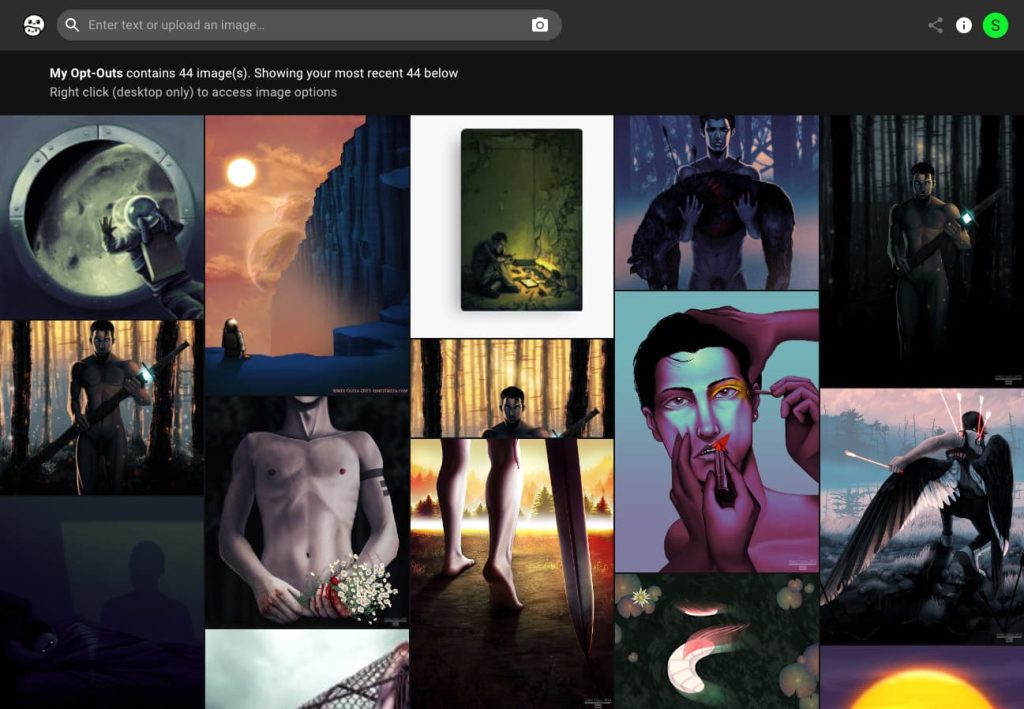
My best bet thing from here on out is to prep for posting new works and protecting those. I can delete artworks all day, change their URLs, add honkin’ watermarks, but the damage has already been done. Enter: The Glaze Project.
What is Glaze?
The Glaze Project by the University of Chicago is a program meant to add meaningful pixel data to your works to help throw off AI art programs from ripping “your style” that you worked so hard to create. Glaze works like so: if you imaging your art as a deer, and AI datasets as a hunter, by passing through a river you can effectively throw off your footprints/tracks and divert the hunter elsewhere. Glaze is not an overall protective end-all for your work. Instead, it helps to protect elements of your artwork.
The functionality Glaze describes on its own pages:

The idea is fantastic, and I just had to try it.
Experimenting with Glaze
It is important to note that my very first experience with Glaze was version .1, or Glaze beta 1. The initial release of Glaze boasted a really nice UI, but that UI has since been removed in beta 2 and beta 3. The Glaze team stated this was due to using open source items, though they did not want to project overall to be open source, so the UI is, for now, acceptable but not as nice as you’ll see in my screenshots. The end result is still the same, but just a fair warning it looks a little different!
Using Glaze is very simple. Put an image in, decide how much visible altering you want (more = more protection), and then how long you want the render to take. You can preview so you’re not completely unaware of what the end results may be. Glaze’s own documentation states that it’s most visible on flat colors and areas lacking details/textures, but you may find results vary (I certainly did).

Using the slider, then click preview. I noticed that the very high intensity is very visible, whereas very low is not (makes sense). This all depends on the artwork input, too. I actually think the very high intensity works for this particular drawing, which is called Human(iform) and is of a robot named R. Daneel Olivaw.
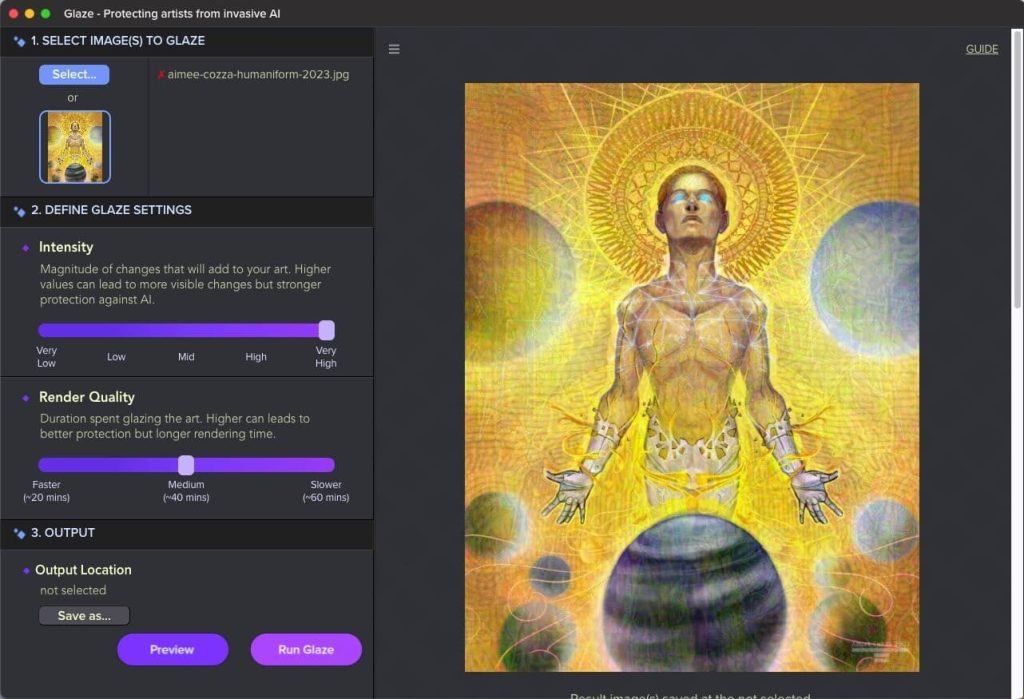
From there, you can export. It takes a bit of time to render each image. This image was of downgraded quality and size for web (1200px tall) and it took about 40 mins to render the output. I’m using a Mac Mini however – people with better machines are likely to see faster times. It also uses a lot of memory to produce results, so you may have to close Photoshop or other applications to allow it to run. I’ve had it tell me it can’t preview many times because it doesn’t have enough memory. I am hoping this can be worked out better in future versions.
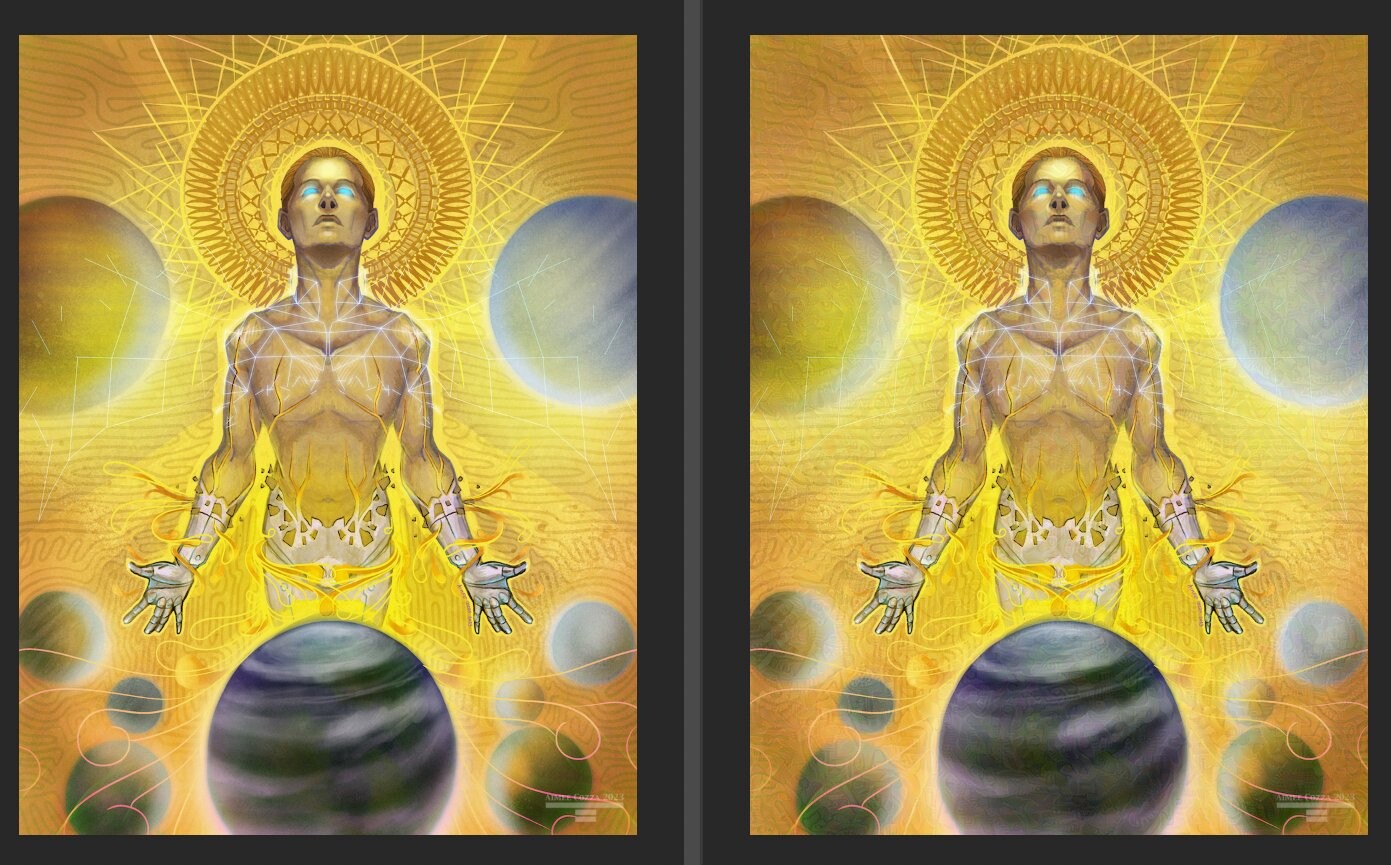
I did notice there is some color shifting (the glazed image is more pink than the original) and some finer details are lost (especially textures); the output feels like a lower quality jpg. Expected, but a warning no less.
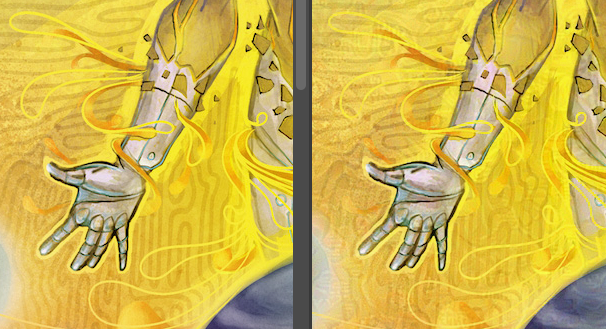
You can batch images by adding them all to your queue, so you don’t have to do them one at a time – a helpful feature for users wanting to use this for a bulk of works.
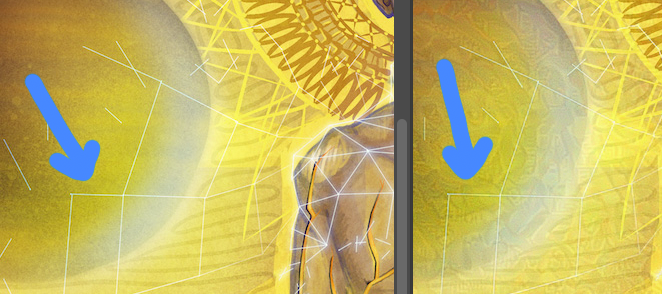
I thought Glaze would be super noticeable on large flat color swath areas. Instead, I found in the preview it’s much more noticeable in smoothly rendered places – think smooth gradients. Here it’s hardly noticeable in the pink, and I expect higher quality outputs.


I thought surely something with a lot of texture would hide Glaze the best, so I selected “Dark Waters” to run through the program, but based on the preview alone, it’s actually made the Glaze effect most visible of all.
Running it through Glaze at a medium intensity and it’s super visible on the output. I would love to run this at a lower intensity, but haven’t been able to do so just yet.
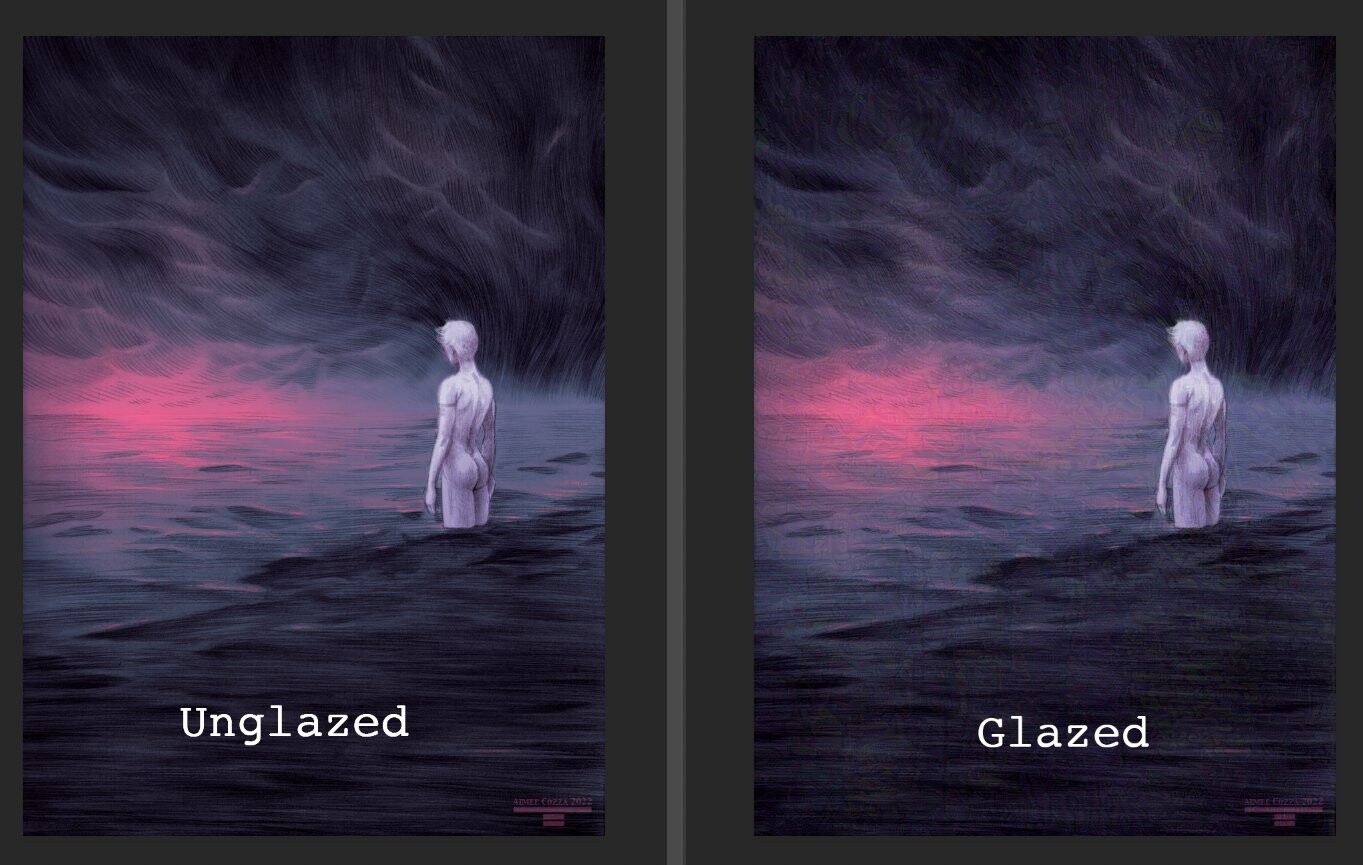
Generally speaking, all images I’ve put through Glaze have ballooned in size. A 500k image becomes a 1 MB image, likely because there’s more pixel data now. The team at Glaze claims that even if you run your image through something like Squoosh, it’ll still preserve the protective aspects, given you’ve made changes to the actual pixel data.
The takeaway is: Glaze probably isn’t for everyone, especially if you’re concerned about the quality of your images on the internet (esp if there’s a lot of details). But it will help protect your image against AI scraping, along with other tools like noai and noindexai protection, so there is some tradeoff to be had.
Since running these initial tests, I’ve been working with Glaze beta 3 and protecting any new artworks that I’ve been publishing. These works are glazed:


I have found that even a mid level intensity glaze doesn’t detract much from many pieces, and I’m actually welcoming using further iterations of it to help protect my works.
I was very much impressed by the Glaze project’s commitment to protecting artworks, especially when I ran a work through and received the following errors:
Warning: we failed to produce strong enough protection for this art (giskard black copy.jpg). Please try increasing the Intensity level and/or render quality. ERROR CODE: 0016
Warning: we failed to produce strong enough protection for this art (giskard gold copy.jpg). Please try increasing the Intensity level and/or render quality. ERROR CODE: 0003
Warning: we failed to produce strong enough protection for this art (giskard white copy.jpg). Please try increasing the Intensity level and/or render quality. ERROR CODE: 0021
Amazing. The software will even let you know if it thinks it didn’t create an adequate amount of protection.
Ways you can creatively use Glaze
Glaze is meant to be a tool to help protect the vulnerable parts of your artworks, but that doesn’t mean you have to glaze every work completely. Consider the following scenarios:
- There’s no skill involved when it comes to a large swath of white canvas. Consider glazing a work, then editing glaze to only be apparent on the drawing parts. Since glaze is super visible on some flat color areas, mask out glaze from some flat color areas accordingly.
- You can modify a glazed artwork to fit your needs by overlaying it on your original work, then making it more or less transparent as necessity dictates; you’re essentially just using it as an added texture. I would suggest using a high intensity glaze render if you’re going to do this!
- Use glazed works when posting to social media. You don’t have to glaze everything, but if you’re mocking up an artwork onto a canvas, frame, or something else, glaze the artwork first then use that so you know your work is protected.
Things to Know and Expect from Glaze
Here’s the tl;dr:
- Glaze is not a beat-all for AI art scraping and it will be “defeated” routinely as the Glaze team attempts to catch up and thwart further attempts. Keeping up to date with the latest version will be key here.
- Glaze will likely download new assets every time you open it, so it will be difficult to glaze a piece in a rush.
- Glazing a single work can take upwards of an hour, so just set it and forget it, if you can.
- Pixel data will be added to you work, so expect more kb and mb to be used.
- The Glaze team claims glaze protection holds even if you rescale the image.
- Expect your colors, details, and textures to change after glazing a work.
- Download the latest version at the Glaze project website.
- Follow them on Twitter for the latest!